Frequently asked questions
Everything you want to know about App on the Road, answered briefly and clearly — from the driver app to the dashboard for fleet managers.
General
-
What is App on the Road?
App on the Road is a fleet management system that consists of two parts: a simple mobile app for drivers and a web dashboard for fleet managers. Drivers carry out vehicle inspections, report damage and defects (with photos) and communicate via the built-in chat. Fleet managers see all reports come in straight away, create work orders, manage documents and keep track of expiry dates such as the APK (the Dutch MOT) and tachograph.
-
Who is App on the Road for?
For transport companies, taxi operators and other organisations with their own fleet. The driver app is deliberately kept so simple that drivers can get started without training: large buttons, few steps, clear language.
-
Which devices does App on the Road work on?
The driver app is available for Android and iOS. The dashboard for fleet managers runs in the browser and works on any computer, with no installation.
-
Which languages is the app available in?
The driver app is available in 11 languages: Dutch, English, German, French, Polish, Czech, Spanish, Italian, Bulgarian, Serbian and Hungarian. Every driver chooses their own language in the app.
-
Do my drivers need training?
No. The app is designed to be used without instructions. A driver logs in, sees the vehicle list and can start an inspection or submit a report straight away. For anyone who does want to look something up, there is a concise guide in the knowledge base.
-
How quickly can I get started?
After your environment is created, you enter your vehicles and drivers (manually or via import). Drivers automatically receive an invitation email to set their password and activate the app. Most companies are fully operational within a few days.
Driver app
-
How does a driver report damage?
In two steps. First the details of the incident: type of incident, a short statement, date and time, and the location. Optionally also the details of a counterparty. The driver then adds photos — as many as needed — and submits the report. The damage report appears in the dashboard straight away with the status “Open”.
-
How does a vehicle inspection work in the app?
The driver opens the vehicle, starts the inspection and answers the questions step by step with OK, Not OK or N/A. With “Not OK” they can add a note and a photo. The GPS location is recorded automatically. Through inspection templates you decide which questions are asked — for example a daily roadworthiness check or an extensive periodic check.
-
What does a driver see in the app?
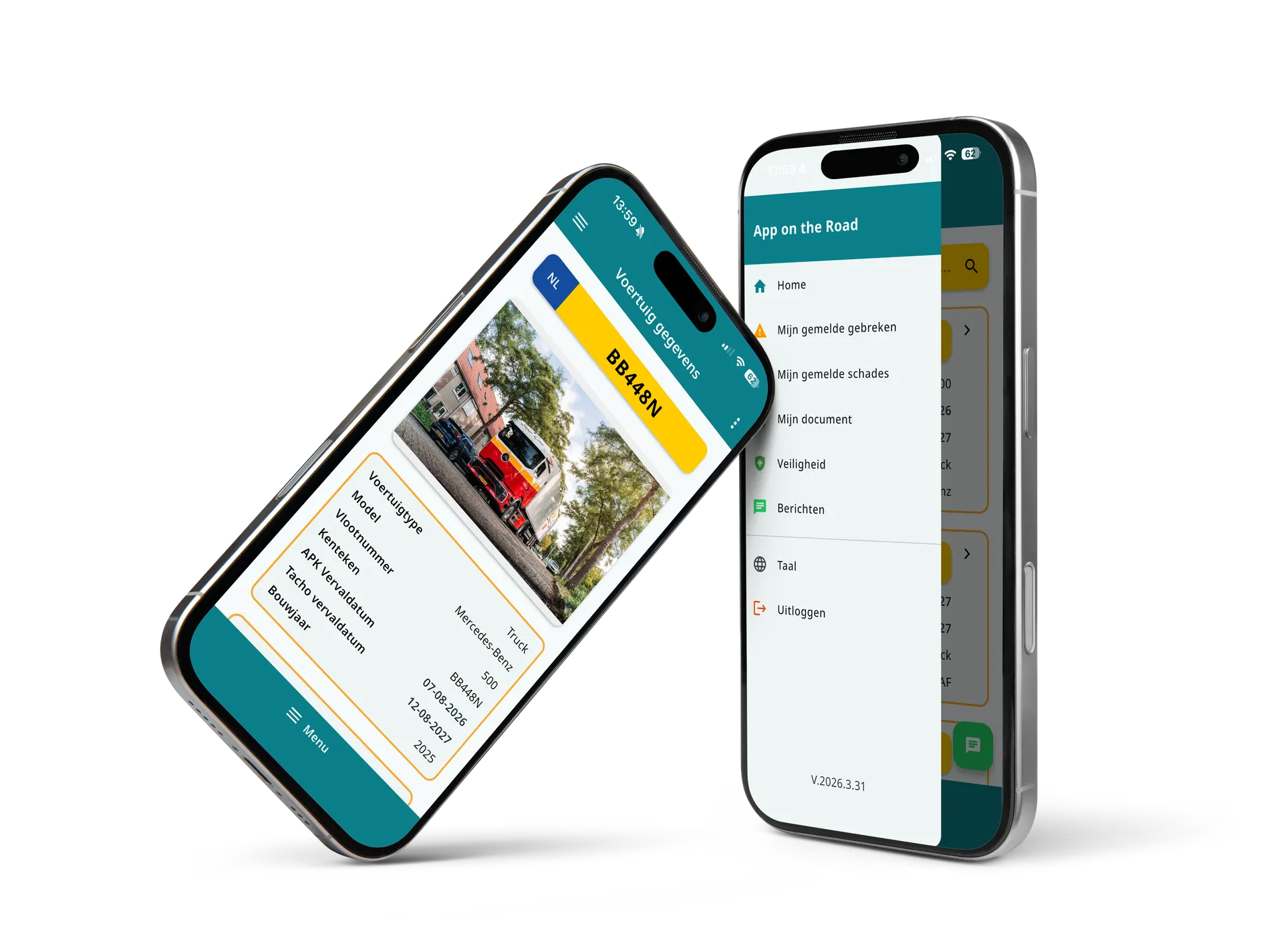
Only what’s relevant: the vehicle list (with license plate, fleet number and colour-coded expiry dates), their own damage and defect reports, their personal documents and the messaging feature. Which parts are visible is configured per company.
-
Can a driver view documents?
Yes. Under “My Documents” the driver sees documents that the fleet manager has made available, such as the green card (insurance certificate), the vehicle registration certificate, manuals or the employer handbook. There are also general documents that are visible to all drivers, for example instructions or protocols.
-
How does the messaging feature work?
Like a chat app. The driver types a message, can attach photos, videos or files, and sees unread messages marked with a red badge. The fleet manager replies to the messages from the dashboard — or on the go from the mobile app.
-
What if a driver has forgotten their password?
The login screen has a “Forgot password” option. After entering their username, the driver receives an email to set a new password. The fleet manager can also reset the password from the dashboard or resend the invitation email.
Dashboard
-
What do I see as a fleet manager in the dashboard?
An up-to-date overview of your entire fleet: all vehicles with expiry dates (APK, tachograph), all open damage and defects, completed inspections, safety reports, work orders and the chats with your drivers. Almost every overview can be filtered and exported to Excel.
-
How do I resolve a reported defect?
By creating a work order for it. When creating a work order, you see all open defects and damage for that vehicle in one overview and link them in batch. As soon as the work order is marked as completed, the system automatically updates the status of all linked reports. Has something already been resolved without a work order? Then you change the status directly on the report itself.
-
Can I send work orders to an external workshop?
Yes. Open the work order and click “Send to supplier”. The system automatically composes an email with the work order and the related photos as attachments. The supplier only needs to have an email address in your master data. Replies from the supplier come back into the work order by email.
-
Can I also work from the mobile app as a manager?
Yes. As a fleet manager you choose in the mobile app whether to use it as a Manager or as a Driver. In manager mode you see all open defects and damage within your company, you can change statuses and you reply to driver chats — handy when you’re on the road.
-
How do I add a new driver?
In the Drivers menu, click “Add driver”, fill in the details and save. The driver automatically receives an invitation email to set a password and activate the app. You can resend the invitation at any time.
-
Can I also give subcontractors or charters access?
Yes. For charters you create their own driver accounts with the “Is charter” checkbox ticked. Per object type you decide which vehicles are visible to charters, so a subcontractor only sees the relevant vehicles.
-
Is vehicle data updated automatically?
Yes, for Dutch license plates the data from the RDW (Dutch road transport authority) is synchronised every night via RDW OpenData. Note: the RDW supplies this data with a one-day delay, so the dashboard is always one day behind the RDW website.
-
Can I import and export data?
Yes. Vehicles and drivers can be supplied via import, documents can be uploaded in batch, and almost every overview (damage, defects, inspections, vehicles, work orders) can be exported to Excel. An API is available for integrations with other systems.
Safety & data
-
What happens when a driver reports an unsafe situation?
When reporting a defect, the driver can indicate that it is unsafe to continue driving. They then see the instruction not to drive any further and to contact the planning department. At the same time, an email or text message is automatically sent to the designated contacts, so a stranded driver is noticed immediately.
-
Can drivers also report near-misses?
Yes, via the safety module a driver reports near-misses, accidents and unsafe situations — with location, cause, initial response, any health questions and photos. These reports end up in the dashboard as safety reports.
-
Who can see which data?
Your data is strictly separated from that of other companies. Within your own environment, you decide via roles who sees what: drivers only see their own reports and vehicles, fleet managers see the data for the entire fleet.
-
Is location data recorded?
When an inspection is carried out and with safety reports, the GPS location is recorded automatically, so it is always clear where the inspection or report took place. The app does not track drivers continuously.
Can’t find your question? Feel free to get in touch.
Get in touchSchedule your demo
In 30 minutes we walk you through how a driver completes an inspection, how damage and defect reports land in the dashboard, and how you follow up on alerts straight away.
Your details:
What you'll discover:
- Lasts 30 to 60 minutes
- Live insight into the app
- No obligations